语义文本去重
Finding duplicate movie reviews with Supabase Vecs.
本指南将带你通过一个使用 Colab 和 Supabase Vecs 的[语义文本去重](https://github.com/supabase/supabase/blob/master/examples/ai/semantic_text_deduplication.ipynb) 示例。你将学习如何使用嵌入找到相似的电影评论,并移除任何看起来像重复的内容。你将会:
🌐 This guide will walk you through a "Semantic Text Deduplication" example using Colab and Supabase Vecs. You'll learn how to find similar movie reviews using embeddings, and remove any that seem like duplicates. You will:
- 启动一个使用 pgvector 存储嵌入的 Postgres 数据库
- 启动一个连接到你的数据库的注意本
- 加载 IMDB 数据集
- 使用
sentence-transformers/all-MiniLM-L6-v2模型来创建一个表示每条评论语义含义的嵌入。 - 搜索所有重复项。
项目设置 #
🌐 Project setup
要创建一个新的 Postgres 数据库,在 Supabase 里新建一个项目:
🌐 To create a new Postgres database, start a new Project in Supabase:
- 在 Supabase 仪表板中创建一个新项目。
- 输入你的项目详情。记得把密码安全地保存起来。
你的数据库将在不到一分钟内可用。
🌐 Your database will be available in less than a minute.
查找你的凭证:
你可以在仪表板上找到你的项目凭证:
🌐 You can find your project credentials on the dashboard:
启动注意本 #
🌐 Launching a notebook
在 Colab 中启动我们的 semantic_text_deduplication 注意本:
🌐 Launch our semantic_text_deduplication notebook in Colab:

在注意本的顶部,你会看到一个按钮 Copy to Drive。点击这个按钮就可以把注意本复制到你的谷歌云端硬盘。
🌐 At the top of the notebook, you'll see a button Copy to Drive. Click this button to copy the notebook to your Google Drive.
正在连接到你的数据库 #
🌐 Connecting to your database
在注意本里,找到指定 DB_CONNECTION 的单元格。它会包含像这样的代码:
🌐 Inside the Notebook, find the cell which specifies the DB_CONNECTION. It will contain some code like this:
1import vecs23DB_CONNECTION = "postgresql://<user>:<password>@<host>:<port>/<db_name>"45# create vector store client6vx = vecs.create_client(DB_CONNECTION)将 DB_CONNECTION 替换为你自己的连接字符串。你可以在项目仪表板上点击 连接 找到连接字符串。
🌐 Replace the DB_CONNECTION with your own connection string. You can find the connection string on your project dashboard by clicking Connect.
SQLAlchemy 要求连接字符串以 postgresql:// 开头(而不是 postgres://)。从仪表板复制字符串后别忘了重命名。
🌐 SQLAlchemy requires the connection string to start with postgresql:// (instead of postgres://). Don't forget to rename this after copying the string from the dashboard.
你必须在 Google Colab 上使用“连接池”(域名以 *.pooler.supabase.com 结尾),因为 Colab 不支持 IPv6。
🌐 You must use the "connection pooling" string (domain ending in *.pooler.supabase.com) with Google Colab since Colab does not support IPv6.
浏览注意本 #
🌐 Stepping through the notebook
现在剩下的就是逐步运行注意本了。你可以通过点击每个代码单元左上角的“执行”按钮(ctrl+enter)来完成。注意本会引导你完成创建集合、向其中添加数据以及查询的过程。
🌐 Now all that's left is to step through the notebook. You can do this by clicking the "execute" button (ctrl+enter) at the top left of each code cell. The notebook guides you through the process of creating a collection, adding data to it, and querying it.
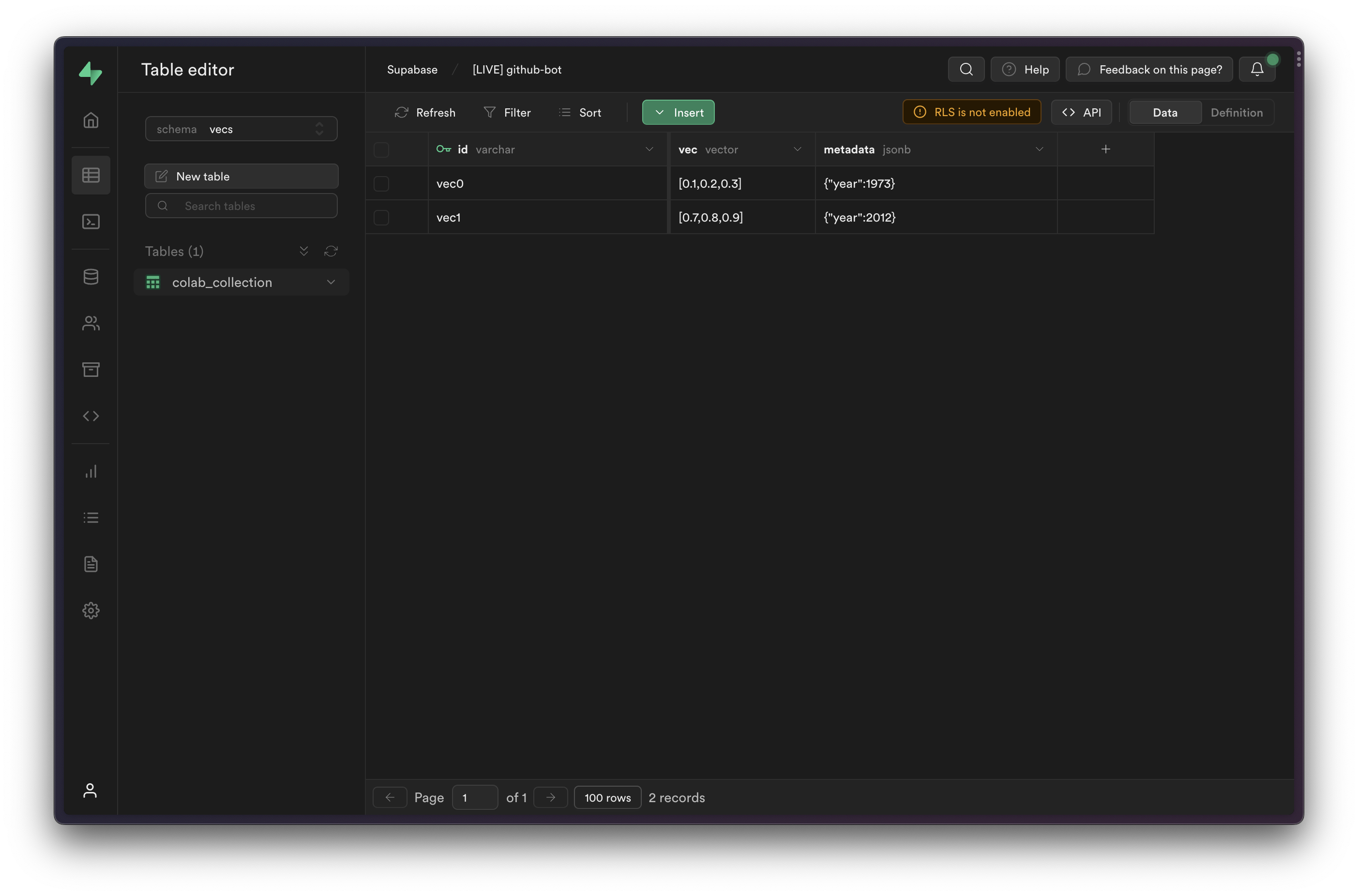
你可以在 表格编辑器 中查看已插入的项目,只需从模式下拉菜单中选择 vecs 模式即可。
🌐 You can view the inserted items in the Table Editor, by selecting the vecs schema from the schema dropdown.
部署 #
🌐 Deployment
如果你有自己的用于部署 Python 应用的基础设施,你可以继续按照本指南使用 vecs。
🌐 If you have your own infrastructure for deploying Python apps, you can continue to use vecs as described in this guide.
或者,如果你想使用 Supabase 部署,可以查看我们关于在 Edge Functions 中使用 TypeScript 调用 Hugging Face 推断 API 的指南。
🌐 Alternatively if you would like to deploy using Supabase, check out our guide on using the Hugging Face Inference API in Edge Functions using TypeScript.
下一步 #
🌐 Next steps
你现在可以开始用 Vecs 构建你自己的应用了。查看我们的示例获取灵感。
🌐 You can now start building your own applications with Vecs. Check our examples for ideas.